jueves, 30 de octubre de 2025

Command 'python' not found. Create a symbolic link.

If you are not on an Ubuntu/Debian system or prefer a manual approach, you can create a symbolic link from python to python3.
First, find the path to your python3 executable:

    which python3
Then, create the symbolic link (replace /usr/bin/python3 with the actual path if different):

    sudo ln -s /usr/bin/python3 /usr/bin/python

miércoles, 29 de octubre de 2025

Option 3: Import existing resource into a Nested CloudFormation Stack


How to Import an SNS Topic into a Nested CloudFormation Stack?

When working with AWS CloudFormation, you might find yourself needing to import existing resources into your infrastructure-as-code setup. In this guide, we'll walk through importing an SNS topic into a nested CloudFormation stack.

The Scenario

You have a CloudFormation template with a nested stack structure:
  • Main Template (template.yaml): Contains the parent stack that references a nested stack
  • Nested Template (nested-templates/sns-stack.yaml): Contains the SNS topic resources.


Main template:

AWSTemplateFormatVersion: '2010-09-09'
Transform: AWS::Serverless-2016-10-31
Description: SAM Template with Nested Stacks

Parameters:
Environment:
Type: String
Default: dev
AllowedValues: [dev, staging, prod]
Description: Deployment environment

Resources:
# Parent stack that contains the nested stack
SNSStack:
Type: AWS::CloudFormation::Stack
Properties:
TemplateURL: ./nested-templates/sns-stack.yaml
Parameters:
Environment: !Ref Environment
TopicName: !Sub "MyNotificationTopic-${Environment}"

Outputs:
SNSTopicARN:
Description: The ARN of the SNS topic
Value: !GetAtt SNSStack.Outputs.SNSTopicARN
Export:
Name: !Sub "${AWS::StackName}-SNSTopicARN"


Nested template:

AWSTemplateFormatVersion: '2010-09-09'
Description: Nested Stack for SNS Resources

Parameters:
Environment:
Type: String
Description: Deployment environment
TopicName:
Type: String
Description: Name for the SNS topic

Resources:
SNSTopic:
Type: AWS::SNS::Topic
Properties:
TopicName: !Sub "${TopicName}"
DisplayName: !Sub "Notification Topic for ${Environment}"
Tags:
- Key: Environment
Value: !Ref Environment
Metadata:
SamResourceId: SNSTopic

Outputs:
SNSTopicARN:
Description: The ARN of the SNS topic
Value: !Ref SNSTopic
Export:
Name: !Sub "${AWS::StackName}-SNSTopicARN"


The Challenge: Importing an Existing SNS Topic

You have an existing SNS topic named "invoice" that you want to import into your CloudFormation stack. The topic already exists in your AWS account, and you want to manage it through your infrastructure-as-code.


Step 1: Update the Nested Template
First, add the SNS topic resource to your nested template:

SNSTopicInvoice:
Type: AWS::SNS::Topic
DeletionPolicy: Retain
Properties:
TopicName: invoice


Step 2: Create a Change Set for Import
Use the AWS CLI to create a change set for importing the existing resource. Replace the values of stack-name, template-body, resources to import, TopicArn, etc.
aws cloudformation create-change-set \
--stack-name test-SNSStack-1TN0405IE0OUB \
--change-set-name ImportSNSTopics \
--template-body file:///home/.../migration/nested-templates/sns-stack.yaml \
--change-set-type IMPORT \
--resources-to-import '[{
"ResourceType": "AWS::SNS::Topic",
"LogicalResourceId": "SNSTopicInvoice",
"ResourceIdentifier": {
"TopicArn": "arn:aws:sns:us-east-1:XXX:invoice"
}
}]' \
--parameters \
ParameterKey=Environment,ParameterValue=dev \
ParameterKey=TopicName,ParameterValue=MyNotificationTopic-dev


Step 3: Execute the Change Set
After creating the change set, execute it to perform the import:

aws cloudformation execute-change-set \
--stack-name test-SNSStack-1TN0405IE0OUB \
--change-set-name ImportSNSTopics \
--region us-east-1


The resource will be imported, and you can manage it from your IaC. 

alejandro@minipc:~/Documents/delrioworks/migration$ aws cloudformation describe-stack-resources --stack-name test-SNSStack-1TN0405IE0OUB
{
"StackResources": [
{
"StackName": "test-SNSStack-1TN0405IE0OUB",
"StackId": "arn:aws:cloudformation:us-east-1:906310767457:stack/test-SNSStack-1TN0405IE0OUB/0de290e0-b42f-11f0-ac84-120e435c95d5",
"LogicalResourceId": "SNSTopic",
"PhysicalResourceId": "arn:aws:sns:us-east-1:906310767457:MyNotificationTopic-dev",
"ResourceType": "AWS::SNS::Topic",
"Timestamp": "2025-10-28T18:51:07.484000+00:00",
"ResourceStatus": "CREATE_COMPLETE",
"DriftInformation": {
"StackResourceDriftStatus": "NOT_CHECKED"
}
}
]
}

lunes, 27 de octubre de 2025

Option 2: Import existing resources into SAM Template using IaC Generator

Let's imagine you have a SAM template to your App, and for some reason you created manually resources. And you want to manage those resources created already into your template. 

  • Go to CloudFormation -> IaC Generator. Click Scan specific resources.
     
  •  Search for DynamoDB. Click on Scan.
     
  • After the scan is finished. Click Create template.
  • Click Update the template for an existing stack, choose the SAM stack.
  • Then enter a template name, deletion policy and update policy. Click on next.
  • Choose the table that you want to import. Click on next and Next again.
  • Then you can review and click Create template.
  • Review the template and Click on Import to stack.
  • Review and click Next.
  • Review and click Import resources.
  • The resource will be imported to the SAM template.

Now you will have the CloudFormation template updated, but let's update our local code to continue developing.

# Get the template and process it to extract the YAML content
aws cloudformation get-template --stack-name test --output json | jq -r '.TemplateBody' > template-updated.yaml


Update your code with Transform

AWSTemplateFormatVersion: '2010-09-09'
Transform: AWS::Serverless-2016-10-31
Description: SAM Template with DynamoDB Table and SNS Topic

Resources:
SecondaryTable:
Metadata:
SamResourceId: "SecondaryTable"
Type: "AWS::DynamoDB::Table"
DeletionPolicy: "Retain"
Properties:
BillingMode: "PAY_PER_REQUEST"
TableName: "SecondaryTable"
AttributeDefinitions:
- AttributeName: "id"
AttributeType: "S"
KeySchema:
- KeyType: "HASH"
AttributeName: "id"
DynamoDBTablePrimaryTable:
UpdateReplacePolicy: "Retain"
Type: "AWS::DynamoDB::Table"
DeletionPolicy: "Retain"
Properties:
SSESpecification:
SSEEnabled: false
TableName: "PrimaryTable"
AttributeDefinitions:
- AttributeType: "S"
AttributeName: "id"
ContributorInsightsSpecification:
Enabled: false
BillingMode: "PAY_PER_REQUEST"
PointInTimeRecoverySpecification:
PointInTimeRecoveryEnabled: false
WarmThroughput:
ReadUnitsPerSecond: 12000
WriteUnitsPerSecond: 4000
KeySchema:
- KeyType: "HASH"
AttributeName: "id"
DeletionProtectionEnabled: false
TableClass: "STANDARD"
Tags: []
TimeToLiveSpecification:
Enabled: false
MySNSTopic:
Properties:
TopicName: "MyNotificationTopic"
Metadata:
SamResourceId: "MySNSTopic"
Type: "AWS::SNS::Topic"


Run sam build and sam deploy.

Option 1: Import existing resources into SAM Template

Let's imagine you have a SAM template to your App, and for some reason you created manually resources. And you want to manage those resources created already into your template. 

 The steps should be as follow:

  • Grab the code of the stack.
  • Create a file with the CloudFormation code that you already have, remove the transform tag. And add the code of what you want to import, in this case we are importing a DynamoDB table.
    AWSTemplateFormatVersion: '2010-09-09'
    Description: SAM Template with DynamoDB Table and SNS Topic

    Resources:
    MySNSTopic:
    Type: AWS::SNS::Topic
    Properties:
    TopicName: MyNotificationTopic
    Metadata:
    SamResourceId: MySNSTopic

    SecondaryTable:
    Type: AWS::DynamoDB::Table
    DeletionPolicy: Retain
    Properties:
    TableName: SecondaryTable
    BillingMode: PAY_PER_REQUEST
    AttributeDefinitions:
    - AttributeName: id
    AttributeType: S
    KeySchema:
    - AttributeName: id
    KeyType: HASH

  • Go to the stack actions -> Import resources into the stack.
  • Choose your CF template. 
  • Enter the name of the dynamodb table.
  • You will see a brief of the import.
  • The import will be completed.
  • Then update your SAM Template.
    AWSTemplateFormatVersion: '2010-09-09'
    Transform: AWS::Serverless-2016-10-31
    Description: SAM Template with DynamoDB Table and SNS Topic

    Resources:
    MySNSTopic:
    Type: AWS::SNS::Topic
    Properties:
    TopicName: MyNotificationTopic

    SecondaryTable:
    Type: AWS::DynamoDB::Table
    DeletionPolicy: Retain
    Properties:
    TableName: SecondaryTable
    BillingMode: PAY_PER_REQUEST
    AttributeDefinitions:
    - AttributeName: id
    AttributeType: S
    KeySchema:
    - AttributeName: id
    KeyType: HASH
  • Run sam build and sam deploy.
  • It will be managed by SAM now.

jueves, 16 de octubre de 2025

Datadog with ECS

 You need to deploy the aws integration first.

Then create an ECS Task definition with the datadog agent.


And  add these policies to the datadog integration role. 

"dms:ListDataProviders",
"dms:ListInstanceProfiles",
"dms:ListMigrationProjects",
"iotfleetwise:ListStateTemplates",
"macie2:ListAllowLists",
"route53-recovery-control-config:ListClusters",
"route53-recovery-control-config:ListControlPanels"


Clear warnings in aws integration - resource collection


Install k6 on Ubuntu

 sudo gpg -k
sudo gpg --no-default-keyring --keyring /usr/share/keyrings/k6-archive-keyring.gpg --keyserver hkp://keyserver.ubuntu.com:80 --recv-keys C5AD17C747E3415A3642D57D77C6C491D6AC1D69
echo "deb [signed-by=/usr/share/keyrings/k6-archive-keyring.gpg] https://dl.k6.io/deb stable main" | sudo tee /etc/apt/sources.list.d/k6.list
sudo apt-get update
sudo apt-get install k6

lunes, 13 de octubre de 2025

Decrease costs on CloudWatch and Datadog

 Misconfiguration is a common problem that leads to increase on costs. 

You can specify what Datadog must collect, and from where. By going to integrations, clicking on the integration, on my case was aws.

  • There, on the General section you can select the proper region to collect data.


  • Then on the Metric Collection section choose which services you want. 


If you are in AWS, choose use your datadog on the region you are working with. This is because you can benefit from AWS Private Link.

Monitor CloudFront

Enable Internet Monitor from the CloudFront console

It’s quick and straightforward to enable monitoring with Internet Monitor from the CloudFront console. Follow these steps to set up monitoring.

Step 1. Sign in to the AWS Management Console and navigate to Amazon CloudFront. Then, under Telemetry, choose Monitoring, as shown in the following screenshot (Figure 1).

 Screenshot of the CloudFront console Distributions page.
Step 2. Select a distribution, and then choose View distribution metrics, as shown in the following screenshot (Figure 2).

Screenshot of the CloudFront console Monitoring page.
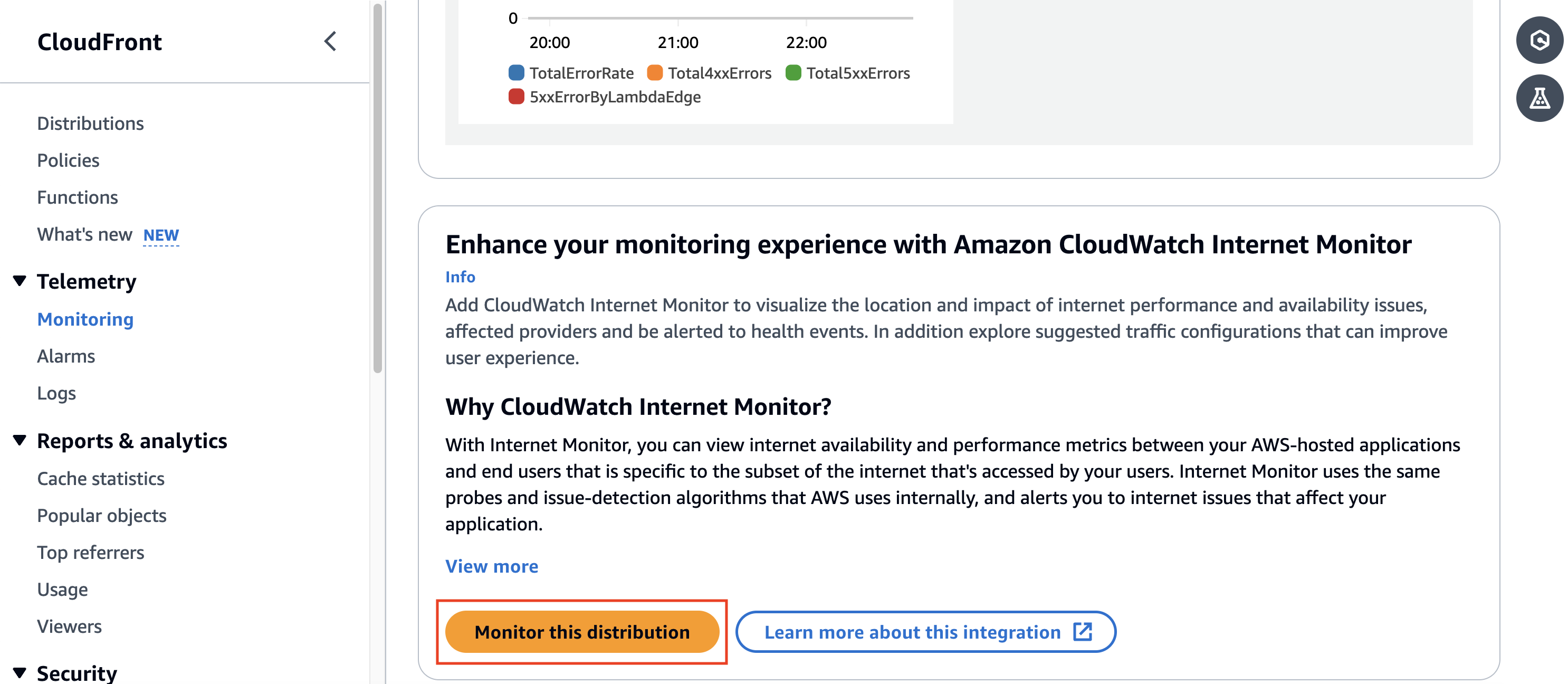
Step 3. On the Distribution metrics page, scroll down to Enhance your monitoring experience with Amazon CloudWatch Internet Monitor. To set up monitoring, choose Monitor this distribution, as shown in the following screenshot (Figure 3).

Screenshot of the CloudFront console Distribution metrics page with the Internet Monitor section. 

domingo, 5 de octubre de 2025

Google Workspace split delivery

Google Workspace Split Delivery Configuration

The general steps for setting up split delivery using Google Workspace as the primary server are as follows. You must be a Google Workspace administrator to perform these steps.

1. Configure DNS (MX Records)

Ensure your domain's MX records are configured to point to Google's mail servers. This makes Google Workspace the primary service that receives all incoming mail for your domain first.

One MX record pointing to smtp.google.com

2. Add the Non-Gmail Email Server as a Mail Route

You need to define your second email system (e.g., your old on-premise server) as a routable host in Google Workspace.

    Sign in to your Google Admin console.

Go to Apps > Google Workspace > Gmail > Hosts (or Add Route).

Add a new route for your non-Gmail server.

    Give it a descriptive Name (e.g., "Legacy Mail Server").

Enter the hostname or IP address of your non-Gmail server.

Specify the correct port (typically 25).

        Save the new route.

I pointed to the mail.domain.com (the legacy server).

3. Set Up the Split Delivery Routing Rule

You'll create a routing rule that tells Google Workspace to check if a user exists in Gmail, and if not, forward the email to your secondary server.

    In the Google Admin console, go to Apps > Google Workspace > Gmail > Routing.

Scroll to the Routing section and Configure or Add Another Rule.

In the Add setting box:

    Provide a Name for the rule (e.g., "Split Delivery to Legacy Server").

Under Email messages to affect, check the Inbound box (and optionally Internal-receiving).

Under For above type of messages, do the following:

    Select Modify message from the menu.

Check the Change route box.

Under Change route, select the non-Gmail server you added in Step 2.

Scroll down and click Show options.

Under Account types to affect, check the Unrecognized/Catch-all box and ensure Users and Groups boxes are unchecked.

    This is the key step: It directs mail for any email address not found in your Google Workspace user list to be sent to your legacy server.

Click Save.


Another thing, you need to setup the email routing to the remote mail exchanger on cPanel.

Migrate mail data to google workspace

I had a company that want to migrate their workloads to google workspace, coming from a cpanel and a classic email service they want to migrate the whole emails to the new accounts. 

I found 2 approach to this kind of work. One is the migration tool of google workspace in the admin console. And another one is imapsync, which I found really good and run very smooth on linux. 


For the google workspace migration tool is easy. 
  • Navigate to Data (or Account)Then select Data import & export
  • Finally, choose Data Migration (New)
  • For migrating from cPanel, you will select Other IMAP Server as the Migration Source. 
  • You will then enter the IMAP server address (e.g., mail.yourdomain.com) and a role account's credentials from your cPanel hosting to establish a connection. 


First you need to create the accounts on the admin console of google workspace. Then on each user enable MFA on each user account. 

Second, create a app password.

https://myaccount.google.com/u/2/apppasswords

Downlaod and install imapsync.

https://imapsync.lamiral.info/dist2/ 


Run imapsync and migrate the folders.

imapsync \
--host1 source.domain.com --user1 source@domain.com --password1 'password' --ssl1 \
--host2 imap.gmail.com --user2 destination@domain.com --password2 'app password' --ssl2 \
--justfolders


Run imapsync with --dry to check if everything will go fine.

imapsync \
--host1 source.domain.com --user1 source@domain.com --password1 'password' --ssl1 \
--host2 imap.gmail.com --user2 destination@domain.com --password2 'app password' --ssl2 \
--dry


 Finally, run the migration.

imapsync \
--host1 source.domain.com --user1 source@domain.com --password1 'password' --ssl1 \
--host2 imap.gmail.com --user2 destination@domain.com --password2 'app password' --ssl2


Will migrate everything even the trash. 


Conclusion: 

 Both tools are good, I found only one issue with data migration tool on one account, this was the only issue. If I can choose one, the best for me is imapsync.

Both tools are slow, for an account with 17k emails took about 12 hours to fully migrate.