lunes, 13 de octubre de 2025

Monitor CloudFront

Enable Internet Monitor from the CloudFront console

It’s quick and straightforward to enable monitoring with Internet Monitor from the CloudFront console. Follow these steps to set up monitoring.

Step 1. Sign in to the AWS Management Console and navigate to Amazon CloudFront. Then, under Telemetry, choose Monitoring, as shown in the following screenshot (Figure 1).

 Screenshot of the CloudFront console Distributions page.
Step 2. Select a distribution, and then choose View distribution metrics, as shown in the following screenshot (Figure 2).

Screenshot of the CloudFront console Monitoring page.
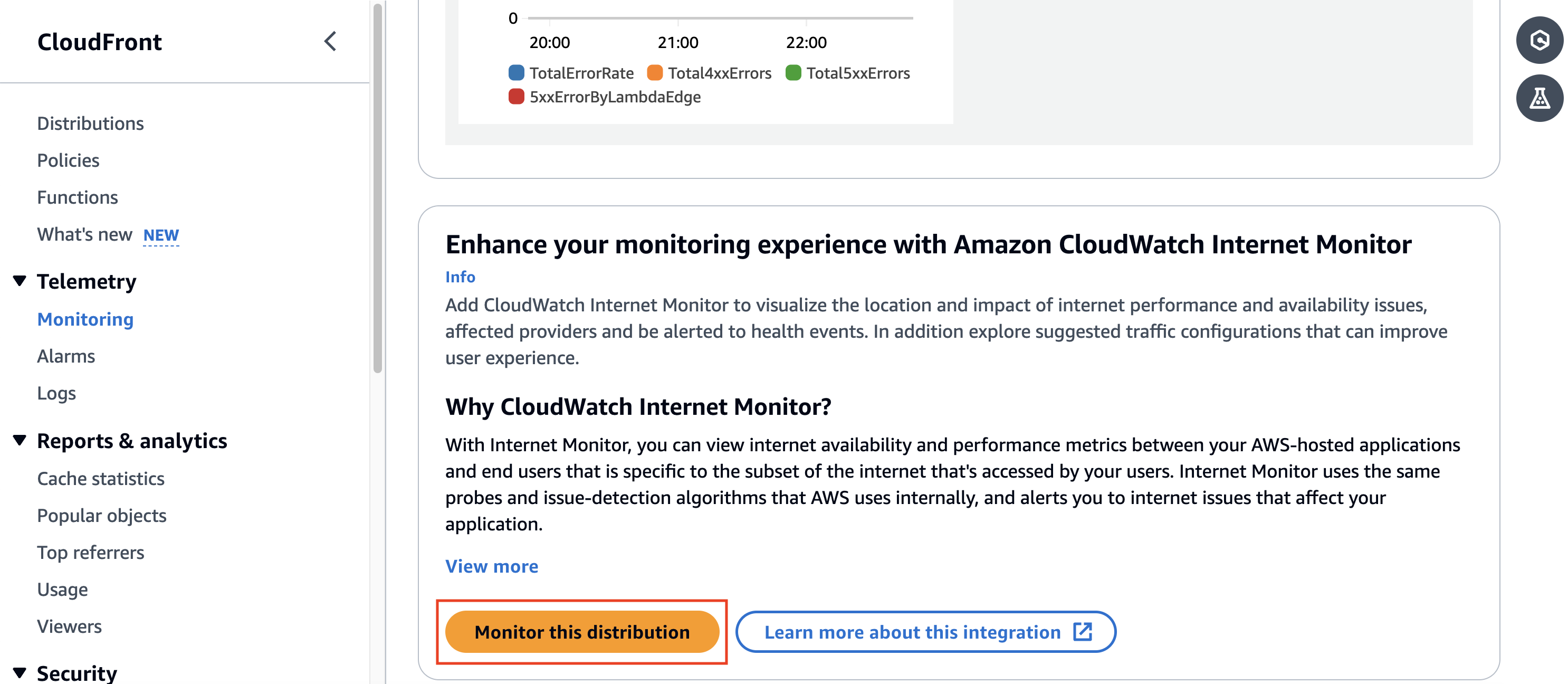
Step 3. On the Distribution metrics page, scroll down to Enhance your monitoring experience with Amazon CloudWatch Internet Monitor. To set up monitoring, choose Monitor this distribution, as shown in the following screenshot (Figure 3).

Screenshot of the CloudFront console Distribution metrics page with the Internet Monitor section. 

domingo, 5 de octubre de 2025

Google Workspace split delivery

Google Workspace Split Delivery Configuration

The general steps for setting up split delivery using Google Workspace as the primary server are as follows. You must be a Google Workspace administrator to perform these steps.

1. Configure DNS (MX Records)

Ensure your domain's MX records are configured to point to Google's mail servers. This makes Google Workspace the primary service that receives all incoming mail for your domain first.

One MX record pointing to smtp.google.com

2. Add the Non-Gmail Email Server as a Mail Route

You need to define your second email system (e.g., your old on-premise server) as a routable host in Google Workspace.

    Sign in to your Google Admin console.

Go to Apps > Google Workspace > Gmail > Hosts (or Add Route).

Add a new route for your non-Gmail server.

    Give it a descriptive Name (e.g., "Legacy Mail Server").

Enter the hostname or IP address of your non-Gmail server.

Specify the correct port (typically 25).

        Save the new route.

I pointed to the mail.domain.com (the legacy server).

3. Set Up the Split Delivery Routing Rule

You'll create a routing rule that tells Google Workspace to check if a user exists in Gmail, and if not, forward the email to your secondary server.

    In the Google Admin console, go to Apps > Google Workspace > Gmail > Routing.

Scroll to the Routing section and Configure or Add Another Rule.

In the Add setting box:

    Provide a Name for the rule (e.g., "Split Delivery to Legacy Server").

Under Email messages to affect, check the Inbound box (and optionally Internal-receiving).

Under For above type of messages, do the following:

    Select Modify message from the menu.

Check the Change route box.

Under Change route, select the non-Gmail server you added in Step 2.

Scroll down and click Show options.

Under Account types to affect, check the Unrecognized/Catch-all box and ensure Users and Groups boxes are unchecked.

    This is the key step: It directs mail for any email address not found in your Google Workspace user list to be sent to your legacy server.

Click Save.


Another thing, you need to setup the email routing to the remote mail exchanger on cPanel.

Migrate mail data to google workspace

I had a company that want to migrate their workloads to google workspace, coming from a cpanel and a classic email service they want to migrate the whole emails to the new accounts. 

I found 2 approach to this kind of work. One is the migration tool of google workspace in the admin console. And another one is imapsync, which I found really good and run very smooth on linux. 


For the google workspace migration tool is easy. 
  • Navigate to Data (or Account)Then select Data import & export
  • Finally, choose Data Migration (New)
  • For migrating from cPanel, you will select Other IMAP Server as the Migration Source. 
  • You will then enter the IMAP server address (e.g., mail.yourdomain.com) and a role account's credentials from your cPanel hosting to establish a connection. 


First you need to create the accounts on the admin console of google workspace. Then on each user enable MFA on each user account. 

Second, create a app password.

https://myaccount.google.com/u/2/apppasswords

Downlaod and install imapsync.

https://imapsync.lamiral.info/dist2/ 


Run imapsync and migrate the folders.

imapsync \
--host1 source.domain.com --user1 source@domain.com --password1 'password' --ssl1 \
--host2 imap.gmail.com --user2 destination@domain.com --password2 'app password' --ssl2 \
--justfolders


Run imapsync with --dry to check if everything will go fine.

imapsync \
--host1 source.domain.com --user1 source@domain.com --password1 'password' --ssl1 \
--host2 imap.gmail.com --user2 destination@domain.com --password2 'app password' --ssl2 \
--dry


 Finally, run the migration.

imapsync \
--host1 source.domain.com --user1 source@domain.com --password1 'password' --ssl1 \
--host2 imap.gmail.com --user2 destination@domain.com --password2 'app password' --ssl2


Will migrate everything even the trash. 


Conclusion: 

 Both tools are good, I found only one issue with data migration tool on one account, this was the only issue. If I can choose one, the best for me is imapsync.

Both tools are slow, for an account with 17k emails took about 12 hours to fully migrate.